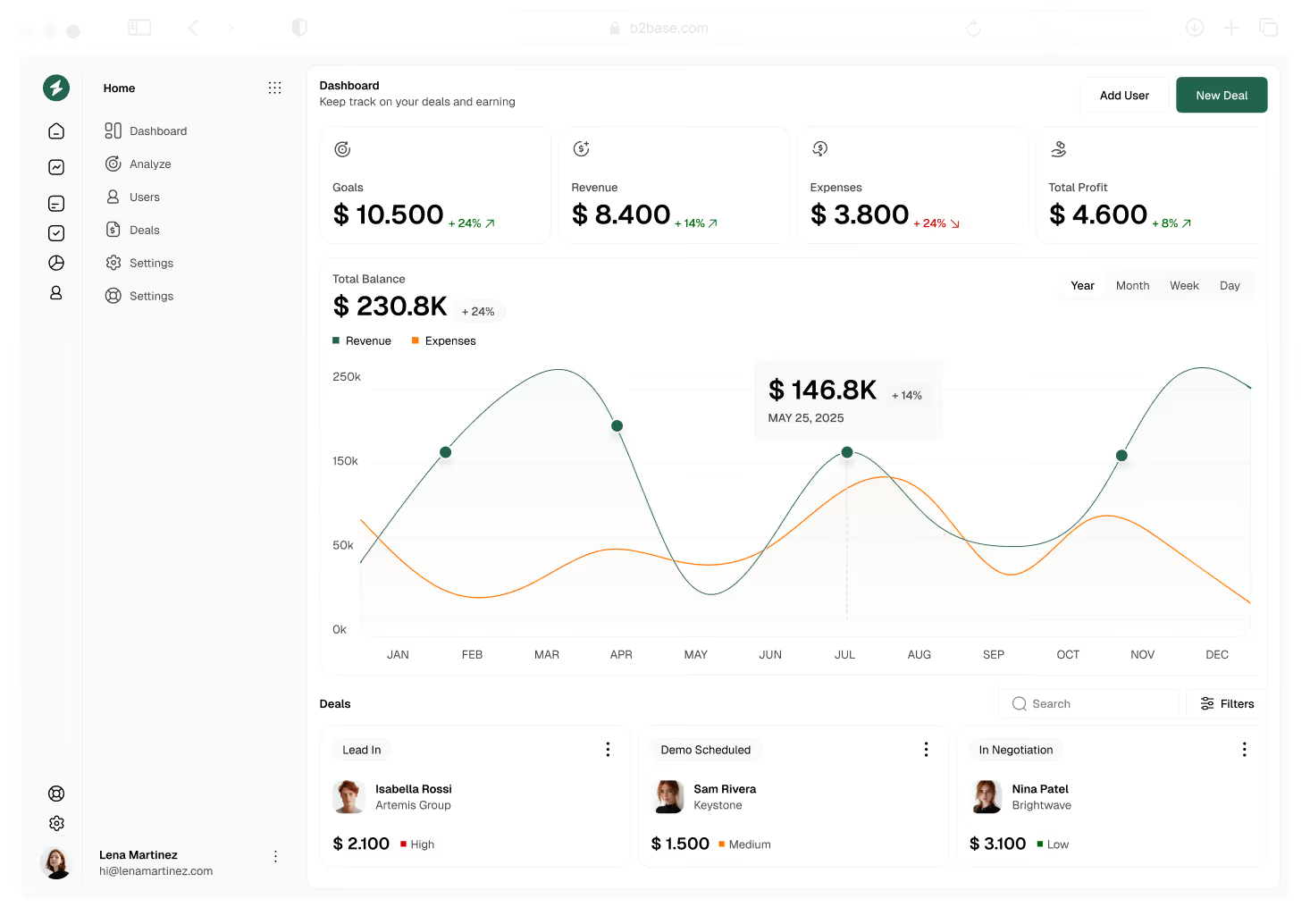



Most teams put off switching tools because of one big fear: the migration process. But with b2base, we’ve made moving from your old CRM fast, frictionless, and (dare we say) satisfying.
In this guide, we’ll walk through the exact steps to move your sales data, set up your team, and go live on b2base—all in less than 24 hours.
Why Teams Switch to b2base
Sales teams are fed up with clunky CRMs that slow reps down and bury insights in outdated dashboards. b2base was built to solve that.
- Lightning-fast interface that reps actually love
- Drag-and-drop pipelines that update in real time
- Automation without code
- Simple forecasting with zero spreadsheets

Migration Checklist: What You’ll Need
Before you start, here’s what to have ready:
- CSV or export file from your existing CRM (HubSpot, Close, Salesforce, etc.)
- User roles or team structure (who gets access to what)
- Your sales stages (or let us help define smarter ones)
- Custom fields or tags (if needed)
The 5-Step b2base Migration
Create Your b2base Workspace
Sign up, name your workspace, and invite your teammates. It takes 60 seconds.
Import Your Deals and Contacts
Upload your CRM export or use our guided integration flow. b2base automatically maps fields, detects duplicates, and flags formatting issues.
Customize Your Pipeline
Tailor your pipeline to match your process—or use our templates optimized for SaaS, agencies, or service-based sales.
Set Up Automations (Optional)
Use b2base's visual automation builder to trigger follow-ups, assign tasks, or update stages—no coding required.
Go Live
Assign deals, activate email sync, and watch your reps actually enjoy using your CRM for the first time.
“We switched to b2base in just 4 hours—and our reps were updating deals the same day. It’s the first CRM our team actually likes using.”— Marcus Webb, VP of Sales @ Hirepath